Creating and deleting users
Domain administrators can create and delete other domain administrators and project members:
-
A domain administrator can manage virtual objects in all projects within the assigned domain, as well as projects and users in the self-service panel.
-
A project member acts as a project administrator in a specific domain in the self-service panel. A project member can be assigned to different projects and can manage virtual objects in them.
Prerequisites
- A domain administrator must have the Image uploading and Project and quota management permissions granted, to be able to configure these permissions for other users.
To create a user
-
Select the domain in the drop-down list in the top right corner.
-
Open the Users screen and click Create user.
-
In the Create user window, specify the user name, password, and, if required, a user email address and description. The user name must be unique within a domain.
A description should not contain any personally identifiable information or sensitive business data.
-
Select the user role:
-
*[Closed]*To create a domain administrator
-
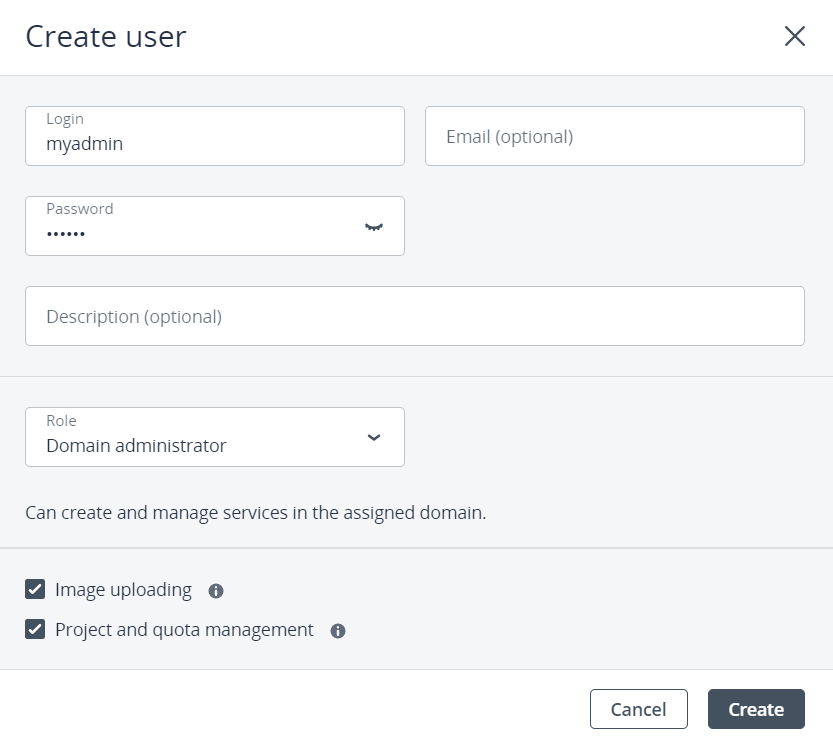
Select the Domain administrator role.
-
Enable Image uploading to allow the user to upload images and configure this permission for other domain users.
-
Enable Project and quota management to allow the user to manage projects and quotas, as well as configure this permission for other domain administrators.
-
*[Closed]*To create a project administrator
-
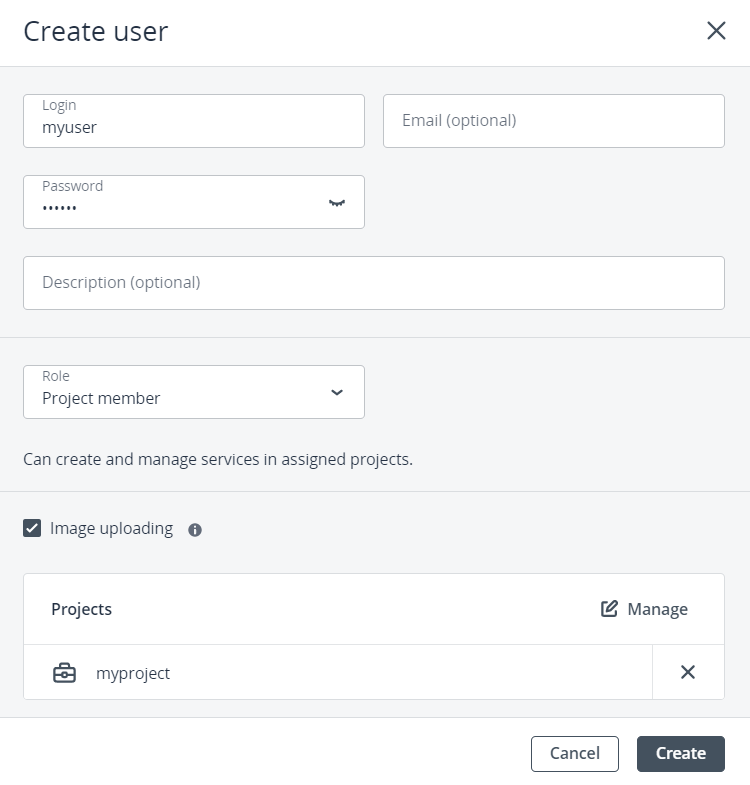
Select the Project member role.
-
Enable Image uploading to allow the user to upload images.
-
Click Manage in the Projects section and select a project to assign the user to. Then, click Save.
- Click Create.
To delete a user
-
Select the domain in the drop-down list in the top right corner.
-
On the Users screen, click the ellipsis icon next to the user, and then click Delete.
-
Click Delete in the confirmation window.